Control Panel
The following page describes all the elements of the control panel.
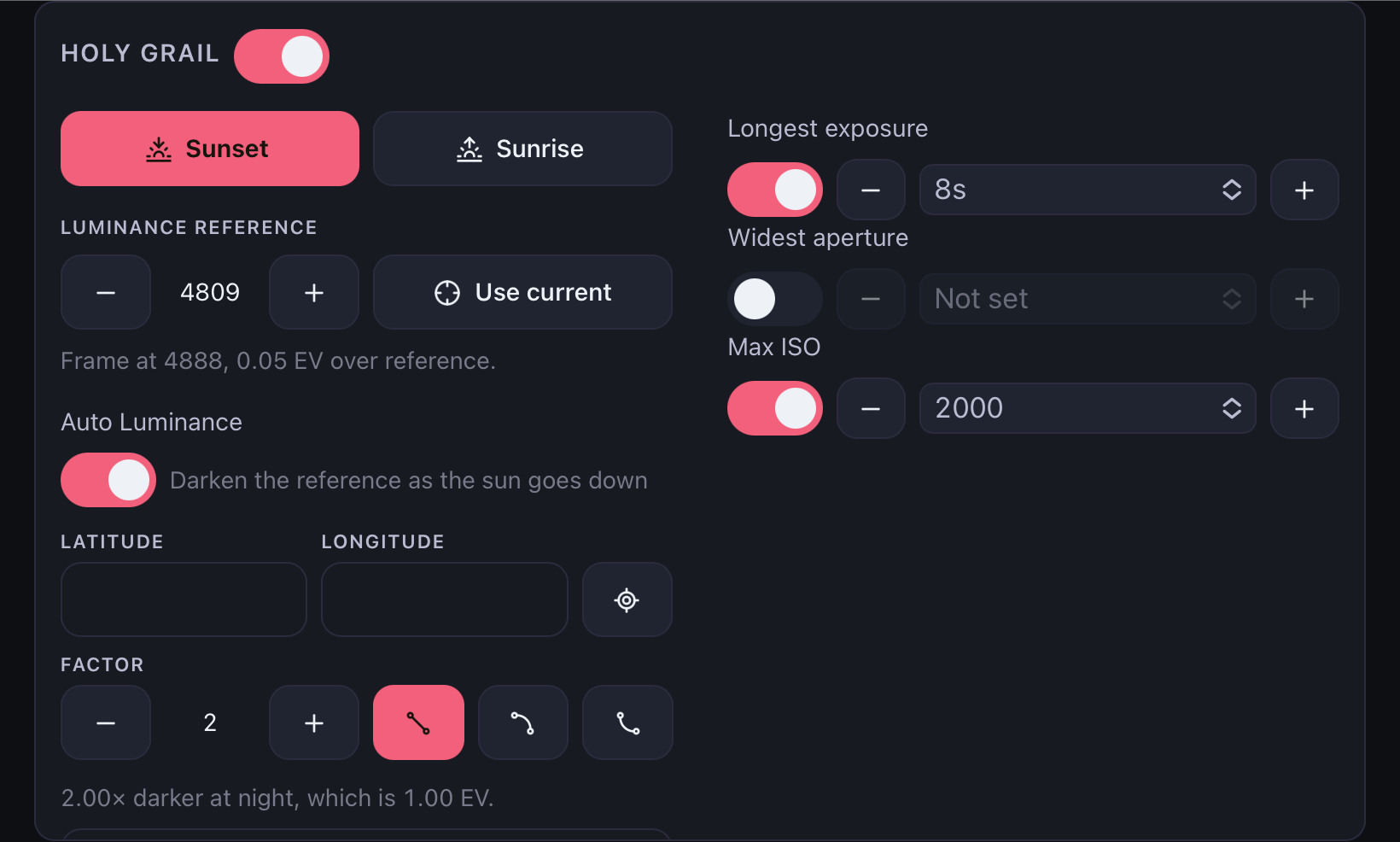
Holy Grail
First, we can enable the Holy Grail option. Next, we need to select whether it's a sunrise or a sunset.
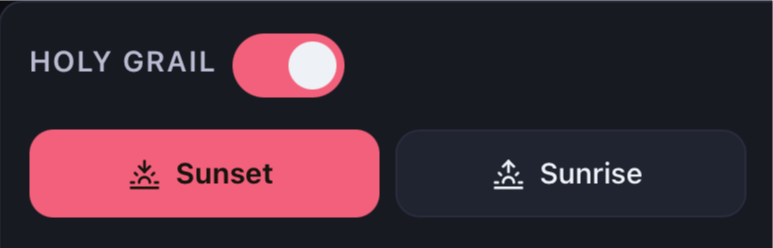
Luminance reference
Here we set the static luminance reference value. Dusklapse will then attempt to maintain the camera exposure at this reference value. By default, the luminance value of the first JPEG preview is used here. However, the value can also be adjusted manually using the “+” and “-” buttons. Alternatively, the value can be set to the luminance value of the current JPEG preview by clicking the “Use Current” button.
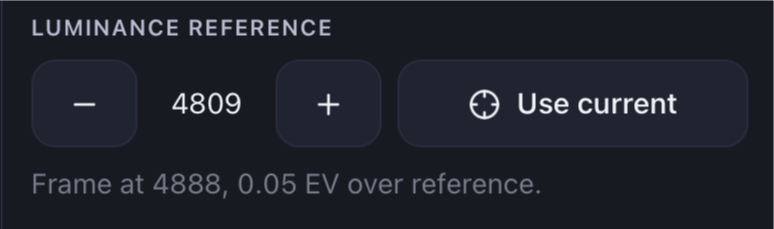
Below the settings, the luminance value of the current preview is also displayed for comparison.
Auto Luminance
With the Auto Luminance feature, Dusklapse attempts to dynamically adjust the luminance reference value based on GPS and time data. If the device has GPS, you can use the “Target” button to determine your current location (latitude and longitude). You can then set the factor that determines how much darker (or brighter, for sunrises) the image should become over time. In this case, a factor of 2 means that the image will be twice as dark at the end as it was at the beginning. In addition to the factor, you can also adjust the interpolation method for this transition. Options include linear interpolation and two spline interpolation methods.
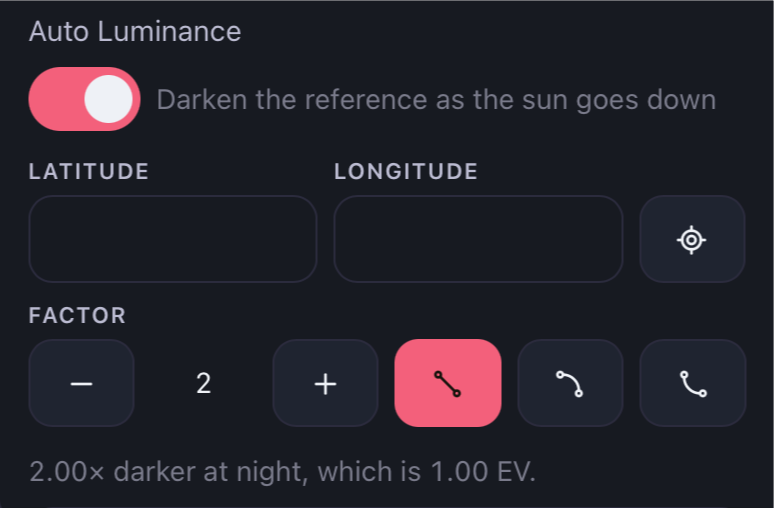
You can define more precisely in the Additional Settings how Dusklapse interprets a sunrise or sunset and how Auto Luminance uses that information to calculate twilight.
Ramping Parameters
Finally, we can set the ramping parameters. Here, we specify the threshold values up to which Dusklapse should ramp the shutter speed, ISO, and aperture values.
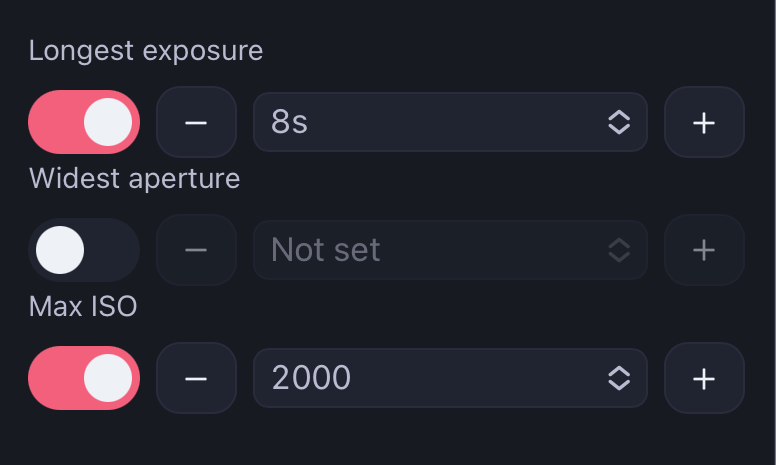
Dusklapse then adjusts the parameters in the following order (sunset):
- Shutter speed
- Aperture
- ISO
For sunrises, the order is exactly the opposite.